
Digital Cloud or USB Which Is the Safest Way to Store Your Digital Memories
A shoebox of old photos can survive for decades in a closet. A folder of digitized photos can disappear in seconds if it lives in only one place.
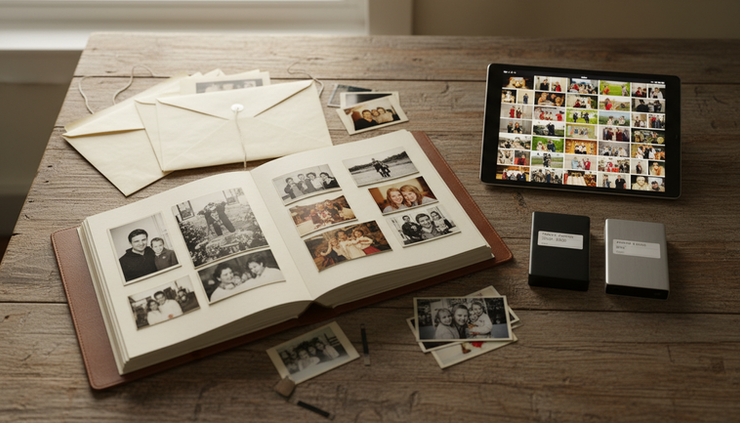
That is the uncomfortable truth behind digital memory storage. Scanning family photos, converting VHS tapes, saving old camcorder footage, and organizing phone pictures are all smart moves. Digitizing protects memories from fading film, cracked tapes, water damage, and time. But once those memories become files, they need a different kind of protection.
The big question is simple: should those files live in the cloud, on a physical USB drive, or somewhere else?
The safest answer is not one or the other. The safest way to store digitized memories is to keep more than one copy, in more than one kind of storage, with at least one copy away from your home. Cloud and USB both have a role, but neither one is enough by itself.

Cloud storage is convenient, but it is not magic
Cloud storage feels safe because it removes the burden from your own devices. Services like iCloud, Google Drive, Dropbox, OneDrive, and Amazon Photos store files on remote servers. If your laptop dies or your phone falls in a lake, the files can still be there.
That is a major strength. For digitized memories, cloud storage is especially helpful because it makes sharing and viewing simple. A scanned wedding album can be opened on a phone. A converted home movie can be sent to relatives. A folder of childhood photos can be shared with siblings without mailing a drive across the country.
Cloud storage also helps with off-site protection. If a pipe bursts, a fire damages the house, or severe weather hits, files stored only on a device at home are at risk. A cloud copy gives those memories a second location.
Still, cloud storage has limits.
Cloud accounts depend on passwords, payment status, internet access, and company policies. If someone loses access to an email account, forgets a password, ignores storage warnings, or accidentally deletes a folder, the cloud copy may not be as secure as it seemed.
Syncing can also create problems. If a synced folder on a computer gets deleted, that deletion may spread to the cloud. Some services offer recovery windows, but those windows are not forever.
Cloud storage is best when it is treated as one layer of protection, not the only home for treasured files.
USB drives are simple, but they are easy to lose
A USB flash drive has a dependable appeal. It feels real. You can hold it, label it, put it in a drawer, and hand it to someone. For people who do not want to manage cloud accounts or monthly subscriptions, that simplicity matters.
USB drives are useful for transferring files from one device to another. They are also easy to give as gifts. A family archive on a drive can be copied for adult children, grandparents, or relatives in another state.
Physical storage has another benefit. It gives you control. No service can close your account, change storage terms, or require a monthly fee for files sitting on a drive.
But USB drives are not built to be permanent vaults.
They are small enough to disappear. They can go through the wash, get left in a box during a move, or become unreadable with age. Cheap flash drives can fail without warning. Even high-quality drives can become damaged if they are bent, exposed to heat, or pulled out during a file transfer.
There is also the issue of forgetting what is on them. Many families have a handful of mystery drives in a junk drawer. No labels, no dates, no clue which one contains the scanned photo collection.
A USB drive is a good tool. It is not a full storage plan.

The risks are different for cloud and USB
Cloud and USB storage fail in different ways. That is why comparing them is less useful than combining them.
Storage option | What it does well | Main risks |
Cloud storage | Protects against device loss, makes sharing easy, keeps files off-site | Account lockout, accidental sync deletion, subscription or storage limits, internet dependence |
USB flash drive | Simple, portable, easy to copy and gift | Easy to lose, can fail, can be damaged, often unlabeled |
External hard drive or SSD | Holds large archives, better for full backups than a small USB drive | Can fail, can be dropped, should not be the only copy |
Printed copies | Easy to view without technology, good for favorite images | Vulnerable to fire, water, fading, and limited space |
The safest method uses the strengths of each while reducing the weaknesses.
Think of it this way. A cloud copy protects you if the USB drive fails. A USB or external drive protects you if the cloud account becomes unavailable. A copy stored away from home protects you if something happens to the house.
This is the heart of the common 3-2-1 backup rule:
Keep three copies of important files.
Store them on two different types of media.
Keep one copy off-site.
For digitized memories, that might look like this:
One copy on your computer or main home drive
One copy on an external drive or USB drive
One copy in cloud storage
For an extra layer, store a physical drive at a trusted relative’s house or in a safe deposit box. This is helpful for families in areas where storms, flooding, humidity, or power outages can threaten household electronics.
The safest setup for most families
The best setup does not need to be complicated. It should be easy enough that you will actually maintain it.
A practical memory storage plan looks like this.
Keep a main organized archive at home
Start with one master folder. This is the clean version of the archive. It should have clear folders and names so anyone in the family can understand it.
Use simple folder names:
Family Photos
Home Movies
Scanned Documents
Grandparents
Holidays
Weddings
School Years
Inside those folders, add dates where you know them. A folder named `1998 Christmas` is much easier to understand than `ScanBatch_004`.
If you do not know the exact year, use your best estimate. Something like `1970s Childhood Photos` is still useful.
Back up the archive to an external drive
For a large memory collection, an external hard drive or external SSD is usually better than a tiny USB flash drive. It has more room, is harder to misplace, and can be easier to label.
That said, USB drives still work for smaller collections or duplicate copies. If you use them, choose good-quality drives, label them clearly, and do not treat them as forever storage.
A physical drive should be updated after each major scanning or digitizing project. If you digitize ten VHS tapes or scan a box of photos, copy the new files to the drive right away.
Add cloud storage for off-site access
Cloud storage is the easiest off-site layer for most households. It protects against local damage and makes it easier to share files.
Use a cloud service that fits the way you already manage devices. If the family uses iPhones, iCloud may be simple. If everyone uses Gmail, Google Drive or Google Photos may fit better. If you already pay for Microsoft 365, OneDrive may be enough.
The brand matters less than the habit. Upload the full archive, check that it finished, and make sure someone else trusted knows how to access it if needed.
Store one physical copy away from home
This is the step many people skip.
A backup drive in the same drawer as the computer is helpful if the computer dies. It is not enough if the whole drawer is damaged, stolen, or lost during a move.
Keep one duplicate drive somewhere else:
With a trusted family member
In a safe deposit box
In a fire-resistant safe, if off-site storage is not practical
In a secure place away from heat and moisture
Update that copy a few times a year or after major additions.

Do not forget file quality and organization
Safe storage is not only about where files live. It is also about whether those files are easy to use later.
A folder full of random files may be technically backed up, but it can still become a mess. The goal is to preserve memories in a way future family members can open, understand, and enjoy.
Use common file formats when possible.
For photos, JPEG is widely supported and easy to share. TIFF is often used for higher-quality archival scans, but the files are larger. For videos, MP4 is a common choice because it works on many devices.
Keep original files when you can. If a digitizing service gives you both high-quality files and smaller sharing files, keep both. The larger files are better for long-term preservation. The smaller files are easier to text, email, or upload.
Name files in a clear way. You do not need perfect names for every photo, but avoid leaving everything as `IMG_0001` or `Scan_23`.
Better names might look like:
`1985-06 Family Picnic 01.jpg`
`Grandma Birthday 1992.mp4`
`Dad Navy Photos 1960s 004.tif`
Also create a simple text file inside the archive called `Read Me` or `About This Archive`. Include helpful notes:
Who digitized the files
Approximate dates
Family names that appear often
Which folders contain the most important items
Any unknown people or places
This small file can be a gift to the next generation.
What to avoid when storing digitized memories
A few common mistakes can undo a lot of careful digitizing work.
Relying on one copy
One copy is not a backup. A photo collection saved only on a laptop, only in the cloud, or only on a USB drive is still vulnerable.
Keeping every copy in one place
If all copies are in the same house, one event can affect them all. A second location matters.
Using old mystery drives
If a drive has been sitting in a drawer for years, test it before trusting it. Open several files. Copy the files to a newer drive if needed.
Forgetting passwords
A cloud archive is only helpful if someone can access it. Use a password manager or keep recovery details in a secure place. For shared family archives, decide who else should have access.
Assuming digitizing is the final step
Digitizing is the start of preservation, not the end. Digital files need checking and copying over time. Every year or two, open the archive, test a few videos, look through photo folders, and make sure the backups still work.
Cloud or USB is the wrong choice if it is the only choice
If the question is cloud or USB, cloud wins for convenience and off-site protection. USB wins for simple control and easy physical sharing. For pure safety, neither wins alone.
The strongest plan uses both.
A safe setup for digitized memories looks like this:
Keep an organized master archive at home.
Back it up to an external drive or high-quality USB drive.
Upload a copy to cloud storage.
Keep one physical copy away from home.
Check the backups at least once a year.
That may sound like more work than saving everything to one folder, but it is far less painful than trying to recover lost home movies or the only scanned copy of a grandparent’s wedding photo.
The safest choice is a backup system you will maintain
The safest way to store digital memories is not a single product. It is a simple routine.
Cloud storage protects against loss at home and makes sharing easy. USB drives and external drives give you direct control and a physical copy. Off-site storage protects against the risks no device can solve on its own.
If your digitized memories matter, give them more than one home. Put them in the cloud. Put them on a labeled drive. Keep a copy somewhere safe. Then check the system now and then.
A memory saved in three places has a much better chance of reaching the people who will treasure it next.


Comments